
If you’ve got an Amazon Firestick and a subscription, setting up IPTV on Firestick takes just a few minutes — no technical know-how required. The Firestick is the UK’s most popular streaming device, which is exactly why so many people want a clear guide to IPTV on Firestick that doesn’t get lost in confusing app instructions.
This is a safe, beginner-friendly guide to installing IPTV on Firestick. You’ll learn what you need, how to set it up the easy way (the Amazon Appstore) or the advanced way (sideloading), how to enter your login, and how to fix the issues people hit most. We’ll keep it simple and honest — a setup guide, not a “free channels” tutorial.
How do you install IPTV on Firestick?
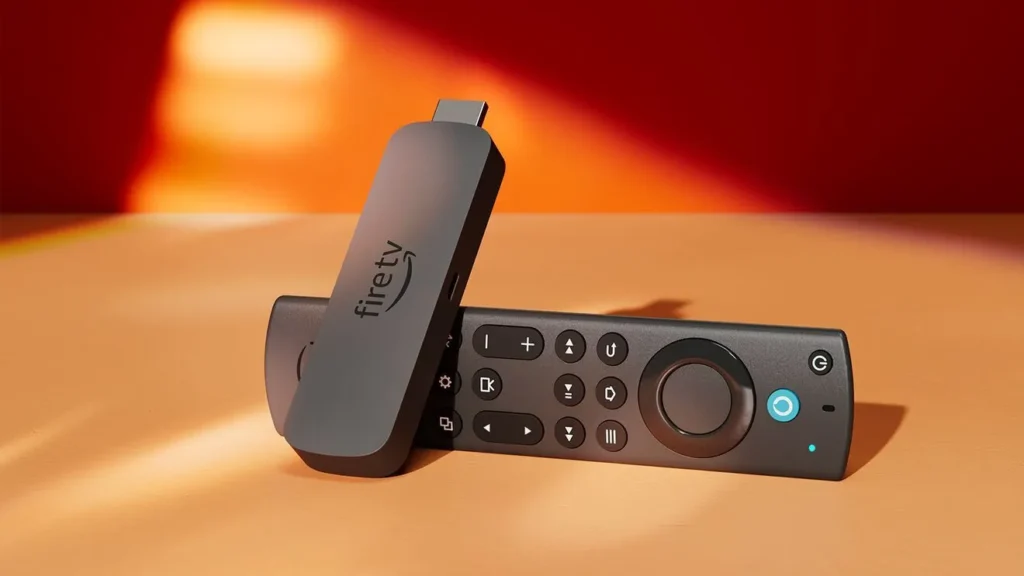
To install IPTV on Firestick, first install a trusted IPTV player from the Amazon Appstore if it’s available. Then open the app and enter the M3U playlist or Xtream Codes login supplied by your IPTV provider. If your chosen app isn’t in the Appstore, sideloading may be possible on some Fire OS devices — but only use trusted sources and avoid random APK downloads.
That’s the whole process in a nutshell. The rest of this guide walks through each step in plain English, plus the tips that keep your streams smooth.
What you’ll need before you start
Setting up IPTV on Firestick takes about 5–10 minutes. Have these ready first:
- A Fire TV Stick or Fire TV device — a Fire TV Stick 4K or 4K Max is ideal for 4K streams.
- A stable broadband connection — around 25 Mbps for Full HD and 35 Mbps+ for 4K.
- An active IPTV subscription with login details — an M3U URL or Xtream Codes (username, password and server URL) from your provider. An IPTV player app does not include any channels by itself; it only plays the line-up your credentials unlock.
- An IPTV player app (we’ll install one below).
If you don’t have a subscription yet, you’ll need login details from a provider before any app will show channels — you can get yours and test it first with a no-card free IPTV trial, or compare plans for a reliable IPTV subscription in the UK.
Setup methods at a glance
| Setup method | Best for | Difficulty | Notes |
|---|---|---|---|
| Amazon Appstore app | Beginners | Easy | Safest route when the app is available |
| Xtream Codes login | Most IPTV subscriptions | Easy | Needs username, password, server URL |
| M3U playlist | Advanced users | Medium | URL must be copied exactly |
| Downloader / sideloading | Apps not in the Appstore | Medium / Risky | Only for compatible Fire OS devices and trusted sources |
How to install IPTV on Firestick step by step
The safest way to install IPTV on Firestick is straight from the Amazon Appstore wherever possible — it’s the simplest option and keeps the app updated automatically.
Step 1: Prepare your Firestick
Plug your Firestick into your TV’s HDMI port, connect it to your Wi-Fi, and make sure Fire OS is up to date (Settings → My Fire TV → About → Check for Updates). Most Fire TV devices run Fire OS, which is based on Android, so they handle Android-style apps well. You only need to touch developer settings such as “Apps from Unknown Sources” if you plan to sideload (see below) — leave them off otherwise.
Step 2: Install an IPTV player app
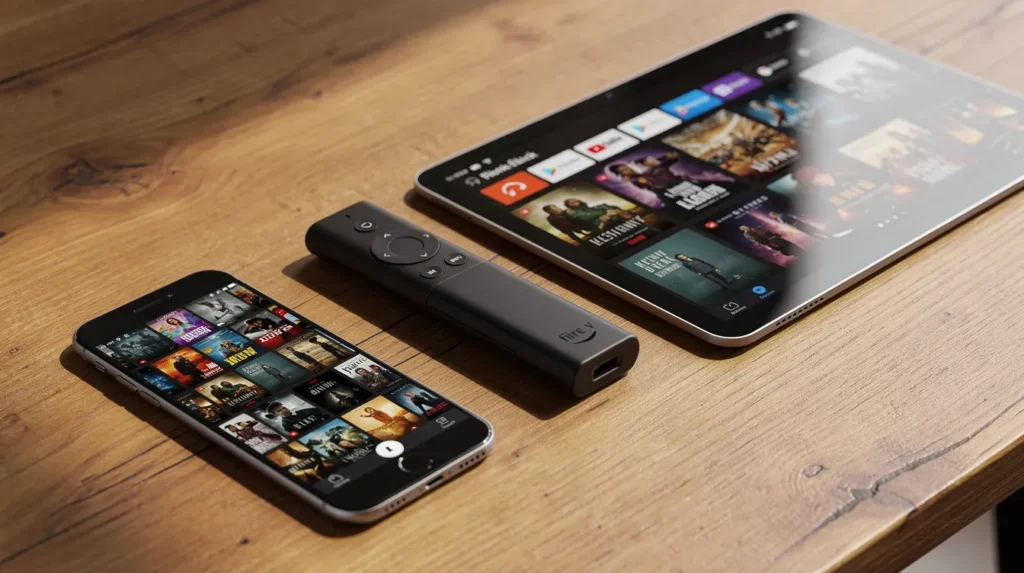
From the Fire TV home screen, use the search (magnifying glass) to look for a trusted IPTV player in the Amazon Appstore — for example IPTV Smarters or IBO Player. Select it and choose Get / Download to install. Installing from the official Appstore is the safest way to get set up.
Step 3: Enter your login details
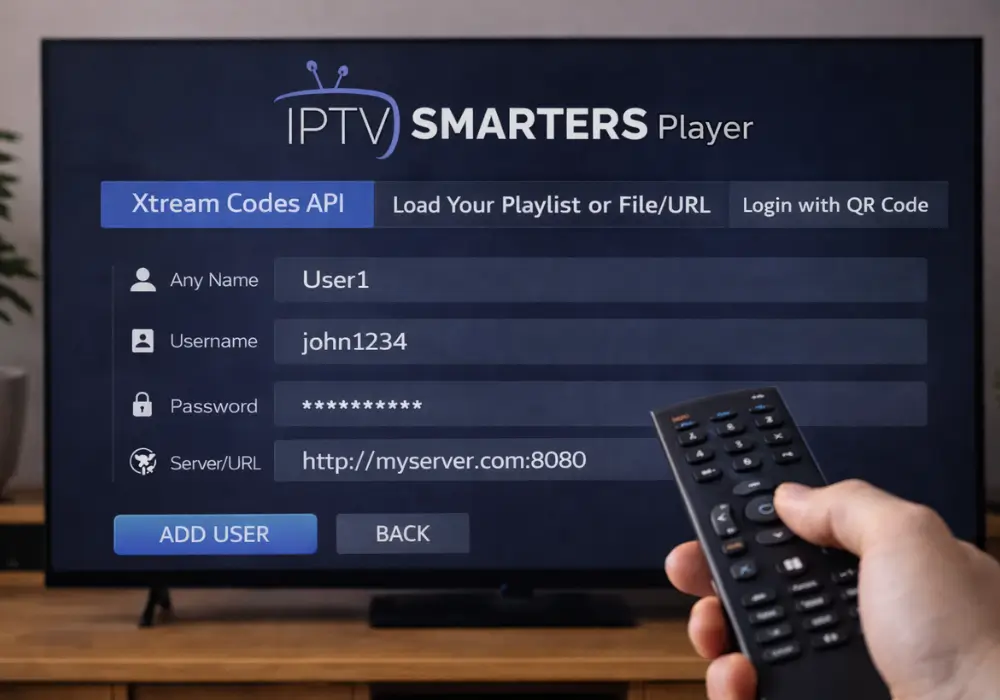
Open the app and choose how you’ll log in:
- Xtream Codes (easiest): enter the username, password and server URL from your provider.
- M3U playlist: paste your M3U URL exactly as supplied — a single wrong character will stop it loading.
Step 4: Load your channels and start watching
The app will pull in your channel list and, where supported, the EPG (the 7-day programme guide). Give it a moment to load, then open Live TV and start watching. That’s IPTV on Firestick set up and ready to go.
Installing apps that aren’t in the Appstore (sideloading)
If the player you want isn’t in the Amazon Appstore (TiviMate is a common example), you can sometimes sideload it using the free Downloader app. This is optional, more technical, and device-dependent — treat it as the advanced route to IPTV on Firestick, not the default.
A few important cautions:
- Only use trusted, official sources. Never download APKs from random websites — they’re a common source of malware. We don’t link APKs in this guide for that reason.
- Sideloading doesn’t work on every Firestick. Amazon’s newer Vega OS devices behave differently from older Fire OS sticks. Amazon has said Vega OS begins with the Fire TV Stick 4K Select and that future Fire TV Sticks will move to Vega OS, so older APK/sideloading instructions may not apply to every new model. Check what your specific device supports before relying on this method.
When in doubt, stick with an Appstore app — it’s the safer, simpler option.
Best IPTV player apps for Firestick
The most popular players each suit a different type of user: TiviMate (the most polished TV interface, often sideloaded), IPTV Smarters and IBO Player (beginner-friendly, usually available in the Appstore), and Smart STB. For a full breakdown of features, pros and cons, see our guide to the best IPTV players in the United Kingdom. You can confirm exactly what’s available before subscribing on the channel line-up page.
How to stop Firestick buffering
A Firestick is only as good as its connection, so a little setup goes a long way toward smooth, buffer-free streaming:
- Use a Fire TV Stick 4K or 4K Max if you watch in 4K — older sticks can struggle with high-bitrate video.
- Prefer a wired connection (an Ethernet adapter) or strong 5 GHz Wi-Fi over distant 2.4 GHz.
- Close background apps and restart the Firestick now and then to clear memory.
- Make sure your broadband speed matches the quality you’re streaming.
Most buffering comes down to the network or device rather than the app itself. (Our best IPTV players guide covers stability tips, and we’ll publish a dedicated buffering fix guide soon.)
Is IPTV on Firestick legal?
Installing an IPTV player on a Firestick is not illegal — the app is just a media player, and the Firestick is just a streaming device. What matters is the content: using a player to access unauthorised paid content can be illegal. So always use IPTV on Firestick with a legitimate provider and your own valid credentials. For the full picture, read our guide on whether IPTV is legal in the UK.
If you often stream on shared or public Wi-Fi, some viewers add a VPN for extra privacy — it’s entirely optional and doesn’t change what you’re allowed to watch.
Frequently Asked Questions
How do I install IPTV on Firestick?
To install IPTV on Firestick, add a trusted IPTV player from the Amazon Appstore (such as IPTV Smarters or IBO Player), open it, and enter the M3U URL or Xtream Codes login from your provider. The channel list loads automatically, usually in under 10 minutes.
Is IPTV Smarters or TiviMate better for Firestick?
Both are excellent. TiviMate has the most polished TV-style interface and advanced features but is usually sideloaded; IPTV Smarters is beginner-friendly and often available directly in the Amazon Appstore. For the simplest setup, start with an Appstore app.
Why does my Firestick keep buffering?
Buffering is almost always a network or device issue, not the app. Use a Fire TV Stick 4K/4K Max, switch to a wired or 5 GHz connection, close background apps, and check your broadband meets 25 Mbps for HD or 35 Mbps+ for 4K.
Do I need to jailbreak my Firestick for IPTV?
No. There’s no need to “jailbreak” a Firestick — the term is misleading. You simply install a legitimate IPTV player (from the Appstore where possible) and enter your provider login. Sideloading is optional and only needed for apps not in the Appstore.
Is using IPTV on Firestick legal?
Installing an IPTV player is legal, and the Firestick is just a device. Legality depends on the content: only use IPTV on Firestick with a legitimate provider and your own authorised credentials. Accessing unauthorised paid content can be illegal.
Start streaming IPTV on Firestick today
Installing IPTV on Firestick really is a 10-minute job: install a trusted player from the Amazon Appstore, enter your login, and you’re watching. Keep to official sources, match your broadband to your streaming quality, and only ever use legitimate provider credentials.
Ready to watch? Test the service on your own Firestick first with a no-card free IPTV trial, or pick a plan and get set up in minutes with a reliable IPTV subscription in the UK.
Remember: use IPTV players only with legal, authorised content and legitimate provider credentials.